Set up your own API key (BYOK)
Add your own provider API key to Skrebe so you stop sharing demo-mode rate limits. Walks through Google, Anthropic, and OpenAI.
Demo mode is fine for trying Skrebe, but it shares a small pool of free-tier capacity. For real work, bring your own API key. Your key stays in your browser — Skrebe doesn't ship it to a Skrebe-owned server.
This tutorial walks through:
- Picking a provider (Google, Anthropic, or OpenAI).
- Getting an API key from the provider's console.
- Pasting it into Skrebe's Settings page.
- Choosing the model you want to use.
- Verifying it works.
Budget: about ten minutes the first time, mostly waiting on the provider's signup. Two minutes on every machine after.
Before you start
You need:
- A provider account — Google, Anthropic, or OpenAI. All three offer pay-as-you-go billing; you only pay for what you use.
- A browser profile you trust. Skrebe stores the key in this browser's local storage. Anyone with access to the same browser profile can read it.
If you're not sure which provider to pick, default to Google Gemini — the free tier is generous, the models are fast, and Skrebe's defaults are tuned for Gemini.
Step 1 — Pick a provider
Open Skrebe's Settings page from the user menu. Find the AI Provider section. The Provider dropdown lists three choices:
- Google Gemini — fastest defaults, generous free tier. The recommended pick.
- Anthropic Claude — strong on long-form rewriting and idiomatic nuance.
- OpenAI GPT — also strong, broader model lineup.
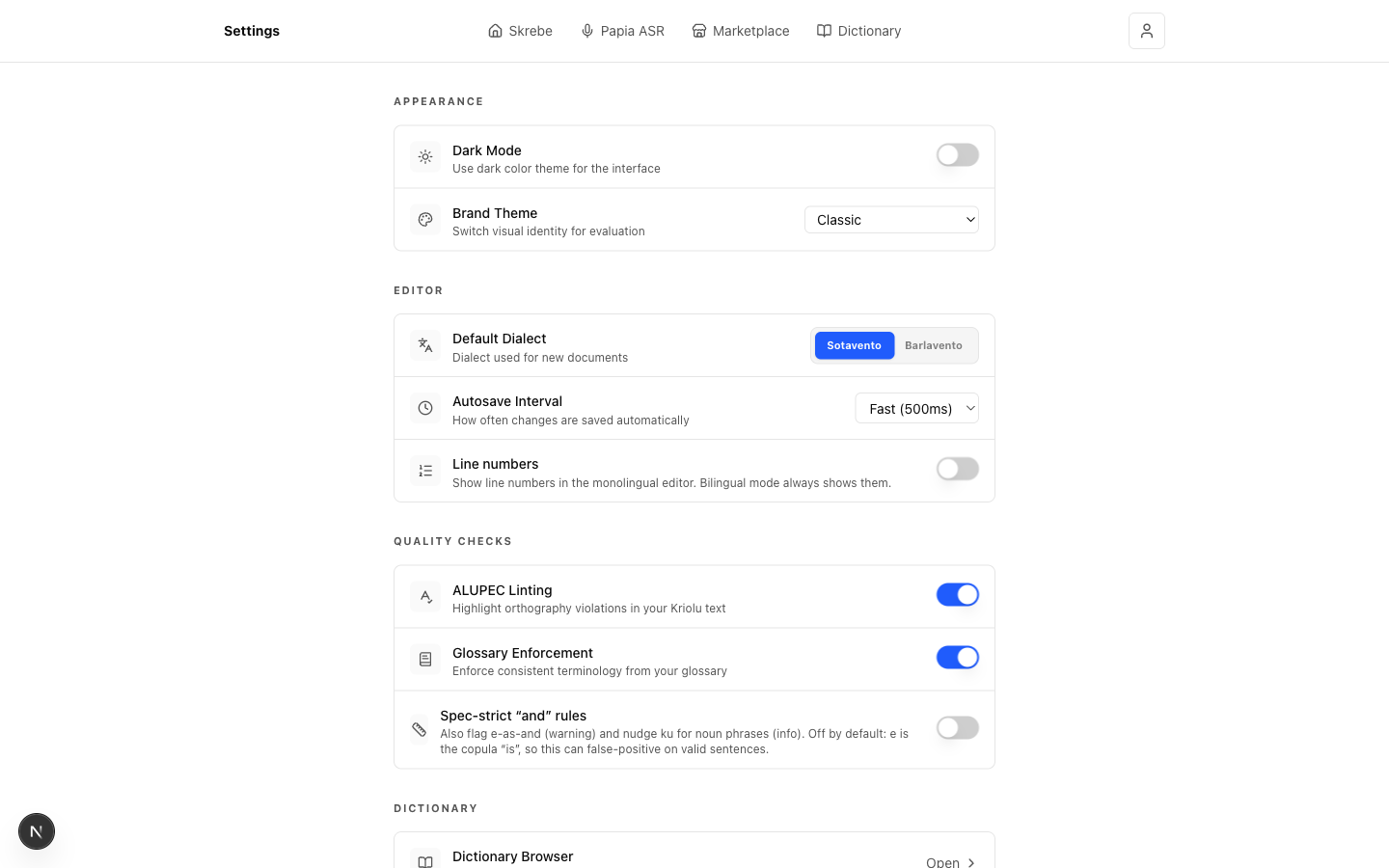
Pick one for now — you can switch later without losing settings. For the rest of this tutorial we'll use Google as the example; the steps for Anthropic and OpenAI are identical, just on a different signup page.
Step 2 — Get an API key
Open the provider's console in a new tab:
| Provider | Where to create a key |
|---|---|
| Google Gemini | aistudio.google.com |
| Anthropic Claude | console.anthropic.com |
| OpenAI GPT | platform.openai.com |
Sign in (or sign up), find the API keys section, and create a new key. You'll usually get a one-time prompt to copy the key — copy it then, because most providers will not show it again. If you lose it, you can always create another.
Step 3 — Paste the key into Skrebe
Back in Skrebe's Settings page, paste your key into the API Key field for the provider you picked.
When you save, Skrebe validates the key shape (length and prefix). If validation passes, the AI Provider section shows an Active badge. The previous Demo badge disappears.
If validation fails, Skrebe shows a short inline error. Common causes:
- A trailing space copied with the key — re-paste cleanly.
- The wrong provider selected for the key (e.g. an OpenAI key under Google).
- A free-tier-only key that the provider has not activated yet — check the provider console.
Step 4 — Pick a model
The Model dropdown unlocks once your key is valid. Choices vary by provider — Gemini keeps it simple with two tiers instead of three — but the rule of thumb is the same:
- Opus / Sonnet / GPT-5.5 — long documents, tricky idioms, second-pass nuance.
- Flash / Haiku / GPT-4.1 — routine drafting and per-paragraph polish. Solid all-rounders.
- Flash Lite / GPT-4.1 Mini — cheapest and fastest. Gemini's Flash Lite holds up well here — it's Skrebe's own default. On GPT-4.1 Mini, give nuanced passages a quick read-through before you ship.
Each provider picks its own default when you select it — Gemini defaults to Flash Lite, Claude to Sonnet 4.6, GPT to GPT-4.1 — so there's no single "default tier" across providers. You can switch model at any time without re-entering the key.
See Supported BYOK providers and models for the full per-provider list and pricing posture.
Step 5 — Verify it works
Open a document. The fastest check is:
- From the workspace, start a Kriolu draft.
- Paste any short paragraph.
- Click the ✦ Quick Polish button in the gutter.
If you see an inline diff overlay (or a "Looks good." pill on a clean paragraph), BYOK is working. The request hit your provider account, not Skrebe's demo pool.
You can also check provider-side: most consoles show "last used" timestamps within a few seconds of the request.
Success check
You're done when:
- The AI Provider section in Settings shows an Active badge.
- The Model dropdown lists models for your provider.
- A Quick Polish or AI Draft action runs without the demo-mode rate-limit banner.
You can now use Skrebe without sharing demo-mode capacity. The Settings page is the place to switch model, rotate the key, or delete it — see Switch model, rotate, delete your API key for those operations.
What's next
- Supported BYOK providers and models — pick the right model for your work.
- Free-tier rate limits + BYOK quotas — understand the limits before you hit them.
- Switch model, rotate, delete your API key — day-to-day key management.