Polish a Kriolu draft in 5 minutes
Use monolingual mode to clean up an existing Kriolu paragraph end-to-end: per-paragraph Quick Polish, whole-document proofread, accept and refine.
This tutorial is for when you already have a Kriolu draft and just want it cleaner — better ALUPEC orthography, fewer Portuguese-interfered phrasings, smoother prose. You will open a paragraph in Skrebe's monolingual editor, run the proofread pass two different ways, and end with a draft you're happy to ship.
Budget: five minutes for a paragraph or two.
What you'll do
- Start a Kriolu-only document.
- Paste a draft you want to polish.
- Use the ✦ Quick Polish button on a single paragraph.
- Run Proofread on the whole document.
- Accept or dismiss proposals from the rail.
Before you start
You need a Kriolu draft. If you don't have one handy, this short paragraph works as a stand-in — it has a couple of obvious ALUPEC slips on purpose:
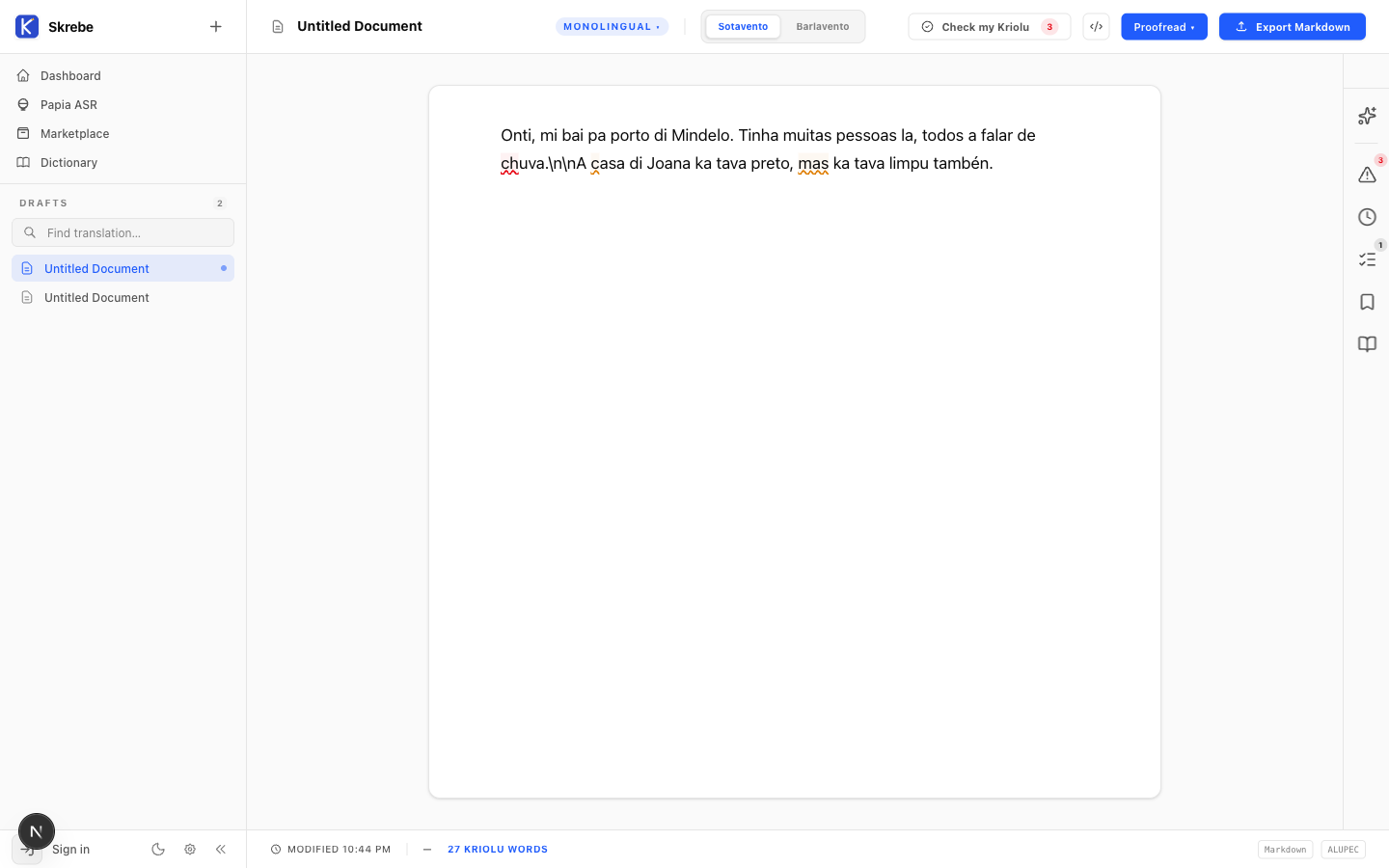
Onti, mi bai pa porto di Mindelo. Tinha muitas pessoas la, todos a falar de chuva.
A casa di Joana ka tava preto, mas ka tava limpu também.
This tutorial uses Skrebe's demo mode by default. For longer texts, bring your own API key. Drafts live in your browser; closing the tab does not lose work.
Step 1 — Start a Kriolu draft
On the Skrebe workspace, open the Start a document chooser and pick Kriolu draft. That's the monolingual option — one pane, no English source.
The monolingual editor opens with a single centered writing surface, a Monolingual badge in the header, and a thin gutter on the left edge of each paragraph.
Step 2 — Paste your draft
Click into the editor and paste your Kriolu paragraph. As you do, you may already see Skrebe's inline ALUPEC linter underlining chuva (should be txuba), pessoas (Portuguese, not Kriolu), and similar Portuguese-interfered tokens.
The inline linter is mechanical — it catches forbidden characters and known wrong spellings. The next two steps are for everything the linter can't see: register, idiom, awkward word order, missed translations.
Step 3 — Quick Polish a single paragraph
Hover the left gutter next to your paragraph. A small ✦ button appears. Click it.
Skrebe sends just that paragraph to the model and asks for a polish — ALUPEC fixes plus prose smoothing. In a couple of seconds, an inline diff overlay appears: red strikethroughs for what would change, green inserts for the replacements.
You have two ways to act on the diff:
- Mini accept / dismiss — small ✓ and ✕ buttons on each highlighted span. Use these to accept or dismiss span by span.
- Popover — click anywhere on the paragraph for a small popover with Accept and Dismiss for the whole paragraph at once.
If the polish is a no-op (rare on a real draft, common on already-clean text), Skrebe shows a "Looks good." pill so you know it ran.
Step 4 — Proofread the whole document
The single-paragraph pass is useful when you're focused. For the rest, click Proofread in the editor toolbar (or open the toolbar's caret and pick Whole document).
A few things happen at once:
- The button label flips to Proofreading… while the model runs.
- A proposal rail slides in on the right, showing one card per change.
- Each card carries the original paragraph snippet, the proposed rewrite, and per-card Accept / Dismiss buttons.
You can also pick a register from the toolbar dropdown — Neutral, Formal, or Informal — before pressing Proofread. The default is Neutral. Use Formal for written notices, Informal for chat-shaped text.
Step 5 — Work through the proposals
Navigate the rail with the keyboard:
- j — next proposal.
- k — previous proposal.
- y — accept the focused proposal.
- n — dismiss the focused proposal.
Accept-all is in the rail header if you trust the run.
When the rail is empty, every proposal has been resolved. The editor reflects your accepted changes; dismissed proposals leave the text as you wrote it.
Success check
You're done when:
- The proposal rail is empty.
- The Issues panel (right edge, the triangle icon) shows zero ALUPEC findings.
- The header shows the Saved chip (Skrebe autosaves continuously).
That's the monolingual polish loop. The draft you started with should now read more cleanly — sharper ALUPEC, less Portuguese drift, smoother prose.
What's next
- Run Quick Polish vs whole-document proofread — when to reach for which.
- Navigate the proofread queue — full keyboard reference.
- Why monolingual is first-class — the reasoning behind giving monolingual its own mode.