Try Skrebe in 60 seconds
The fastest path from zero to a translated paragraph — no account, no API key, no setup.
If you only have a minute, this is the tour. You will paste an English sentence, get a Kriolu translation, and see what Skrebe's quality checks look like on the result. No account, no API key, no install.
What Skrebe actually is
Skrebe is a browser-based editor for English → Cape Verdean Kriolu translation. It pairs a writing surface with an AI model that drafts the Kriolu side and a built-in quality pass that catches forbidden characters (ç, ã, ñ) and common Portuguese-interfered spellings. The output is ALUPEC-shaped Kriolu — not Portuguese, and not the older accent-heavy orthography you'll see in printed books.
This tour is the absolute minimum: one paragraph, one button, one quick look at the result. Real workflows are covered in the longer tutorials linked at the end.
Before you start
Skrebe runs in your browser. Everything you write lives in your browser until you export it — there is no Skrebe-side database of your drafts. If you close the tab and come back later, your work is still there. Clear site data and it's gone.
The 60-second tour uses Skrebe's demo mode: you can run a small number of translations against a shared free-tier model without entering an API key. It's rate-limited but works on first visit.
The 60-second tour
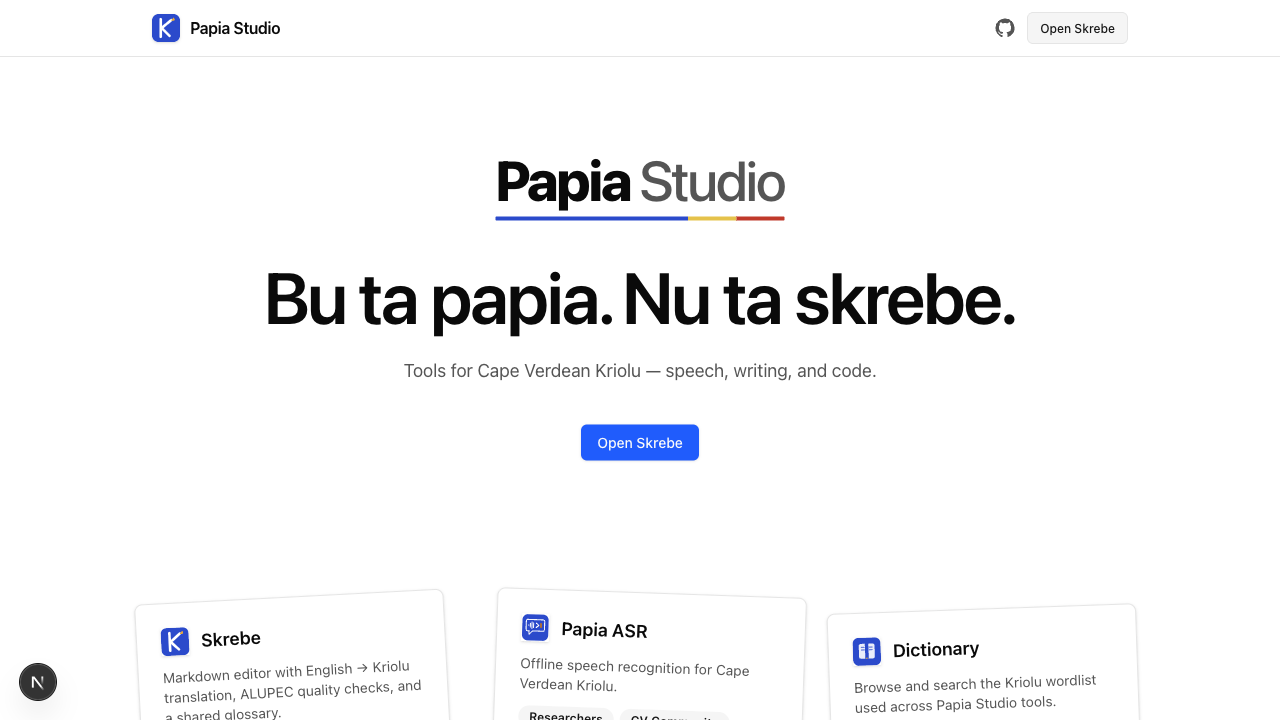
Open Skrebe. Visit the home page and click Try Skrebe on the hero. You'll land on the Skrebe workspace.
Pick a starting point. A Start a document chooser appears with two equal options. For the demo, pick English → Kriolu translation. This gives you a side-by-side editor: English on the left, Kriolu on the right.
You can also pick Kriolu draft if you want to write directly in Kriolu and have Skrebe proofread it — that's a different tour, covered in Polish a Kriolu draft in 5 minutes.
Paste an English sentence. In the left pane, paste or type a short paragraph. Anything you'd plausibly translate works:
The boat leaves the port of Mindelo at six in the morning. Travelers should arrive at least thirty minutes early.Press AI Draft. Look at the toolbar above the right pane. Click AI Draft (or press Cmd + Enter on macOS, Ctrl + Enter on Windows / Linux). Skrebe sends the English text to the model and streams a Kriolu draft into the right pane.
For a two-sentence paragraph this usually finishes in under five seconds.
Read the right pane. You should now see Kriolu prose. ALUPEC orthography —
txuba, notchuva.busisbarku,morningismañan(with then, not Portugueseã).If anything looks off — a missed word, an over-Portuguese phrasing — click into the right pane and edit. Skrebe runs an inline ALUPEC linter that underlines forbidden characters (
ç,ã,ñ) and common Portuguese-interfered spellings as you type.Check the result. Click Check in the toolbar (or press Cmd
- Shift + K). The Issues panel on the right shows ALUPEC and glossary findings, grouped by severity. Zero issues means your draft passes Skrebe's baseline checks — you're done.
Success check
You should see, side by side:
- An English paragraph in the left pane.
- A Kriolu translation in the right pane.
- The Issues panel — green if your draft is clean, or a short list of suggestions you can click through.
If you got here, you have used Skrebe end to end. Everything below is optional polish.
What's next
You've seen the shortest path. The full workflows live in their own tutorials:
- Translate your first document end-to-end — the longer, more deliberate walk through the bilingual editor, including glossary, save, and export.
- Polish a Kriolu draft in 5 minutes — for when you have a Kriolu draft already and just want it cleaned up.
- Set up your own API key (BYOK) — drop the free-tier limits.
Troubleshooting the 60-second tour
If something else went wrong, you can always start over: refresh the page, open the chooser again, paste a shorter sentence (one line is fine) and press AI Draft. Demo mode is forgiving.